OVERVIEW
Recurring subscriptions are a huge part of our business. When we sell a Protection Plan or PC/ID product we set those customers up for monthly billing within our billing platforms, Fusebill or Authorize.net.
Both of these billing platforms each have 2 logins – 1 for Fun Dish and 1 for Pro Plan.
HOW TO REVIEW EACH DATABASE FOR CUSTOMER SET UP ISSUES
- CUSTOMERS WHO HAVE A DECLINED PAYMENT WILL BE PLACED ON AN OUTBOUND CAMPAIGN (CALLED PIPES) TO TRY AND GET THE CUSTOMER ON THE PHONE TO CORRECT THE PAYMENT ISSUE. THEY WILL ALSO BE PLACED ON THE RECURRING DECLINED GOOGLE DOC.
- BOTH FUSEBILL AND AUTH.NET TRANSACTIONS WILL SHOW IN AUTH.NET. THIS IS BECAUSE AUTH.NET IS THE PAYMENT GATEWAY THAT ALL CHARGES FUNNEL THROUGH. WE UTILIZE FUSEBILL FOR RECURRING TRANSACTIONS WHENEVER WE CAN BECAUSE IT HAS ROBUST REPORTING AND WILL AUTOMATICALLY RETRY A DECLINED CUSTOMER UP TO 10 TIMES.
- IN AUTH.NET IF YOU CLICK ON THE TRANSACTION ID YOU CAN VIEW MORE DETAIL ON WHY THE TRANSACTION FAILED – INCLUDING IF THE CREDIT CARD # IS INVALID. SCREENSHOTS BELOW.
- FOR INSTRUCTIONS ON HOW TO UPDATE Z DECLINED RECURRING (+FIND & UPDATE IN FUSE & AUTH) SEE THAT SECTION.


HERE IS HOW TO PULL THE REPORT
- Agemni – Reports – Process
- Begin Date: 11/1/2020 End Date: Yesterday
- Status: Completed
- Inv Type: New Activation
- Recurring Set: YES
- Pro Waive Recurring: NO
- FB Pay Meth Err: YES
- FIND THE CUSTOMER BY CUSTOMER ID IN FUSEBILL
- CLICK ADD UNDER PAYMENT METHODS
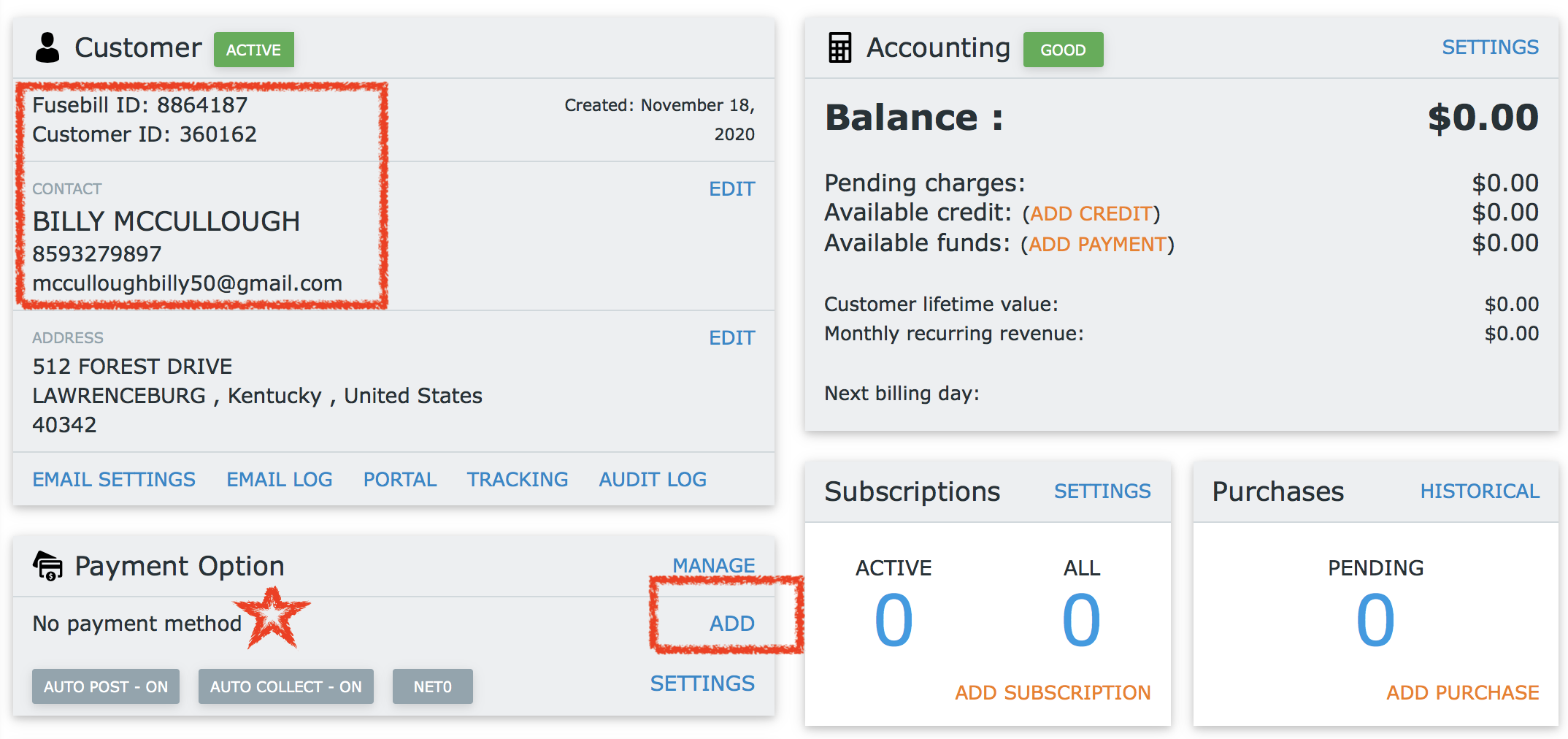
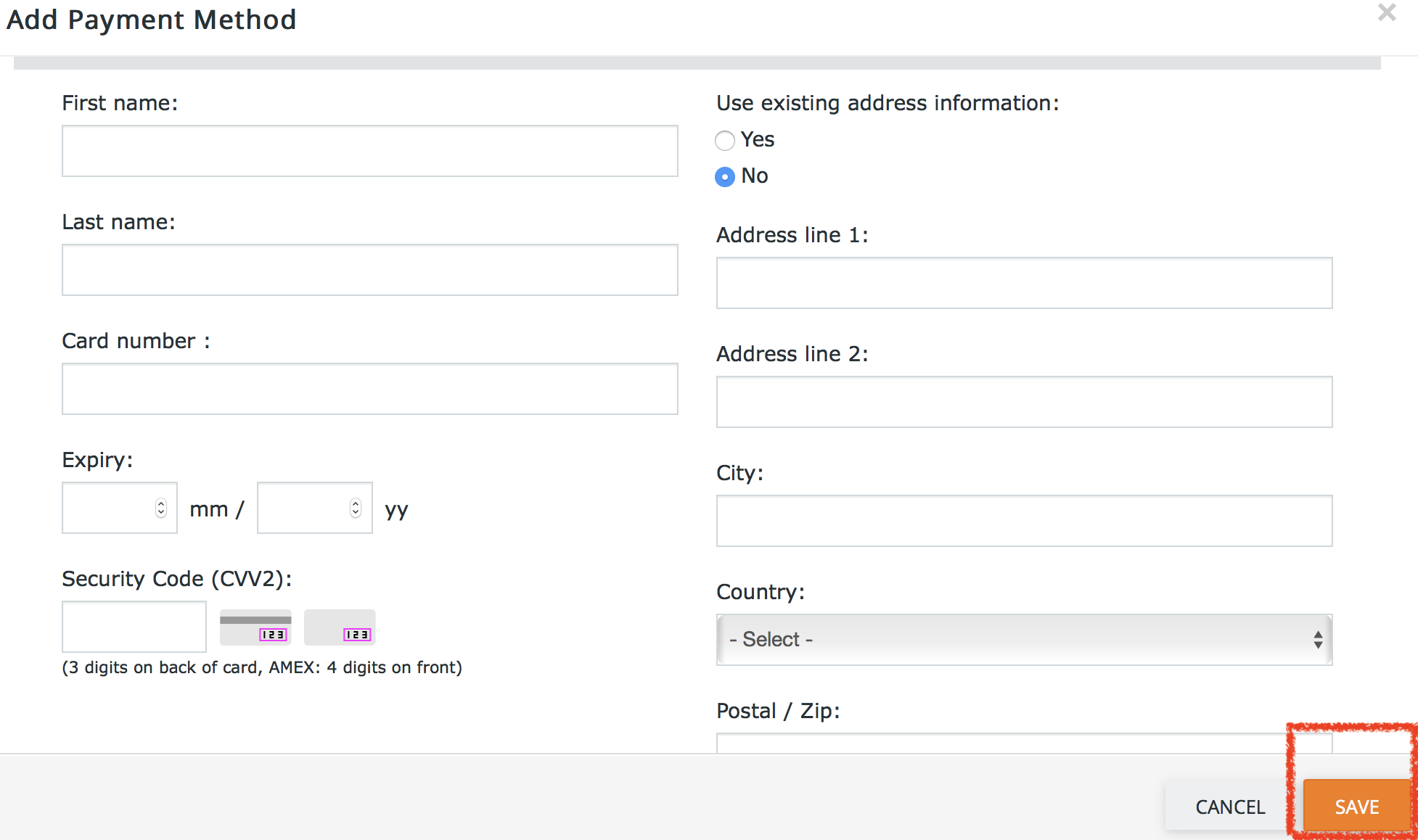
- COPY AND PASTE THE INFO FROM AGEMNI INTO FUSEBILL
- YOU CAN SELECT THE “USE EXISTING ADDRESS INFORMATION” AS LONG AS THE CREDIT CARD ADDRESS IS THE SAME AS THE ONE ON FILE
- PRESS SAVE
- IF YOU GET THIS ERROR AGAIN YOU WILL NOT BE ABLE TO PROCEED
- NOTE AGEMNI THAT YOU RECEIVED ANOTHER PAYMENT METHOD ERROR
- IF THE PAYMENT METHOD WAS ACCEPTED YOU CAN CONTINUE WITH THE STEPS BELOW:

- FROM THE CUSTOMER PROFILE PAGE CLICK ADD SUBSCRIPTION
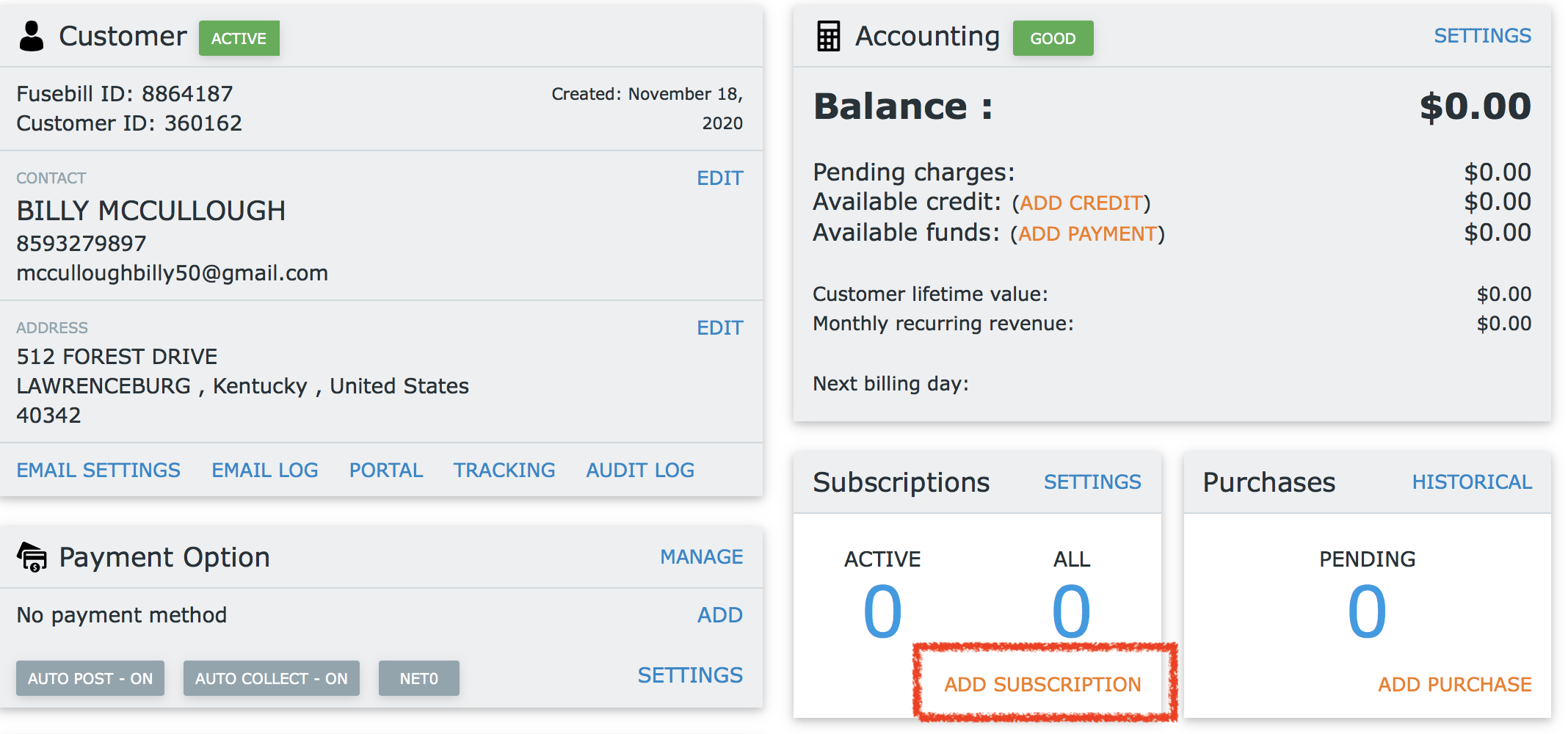
- SELECT THE PLAN FROM THE DROP DOWN IN THE UPPER LEFT
- THEN SELECT THE DATE THE NEXT BILL SHOULD BE IN THE CALENDAR
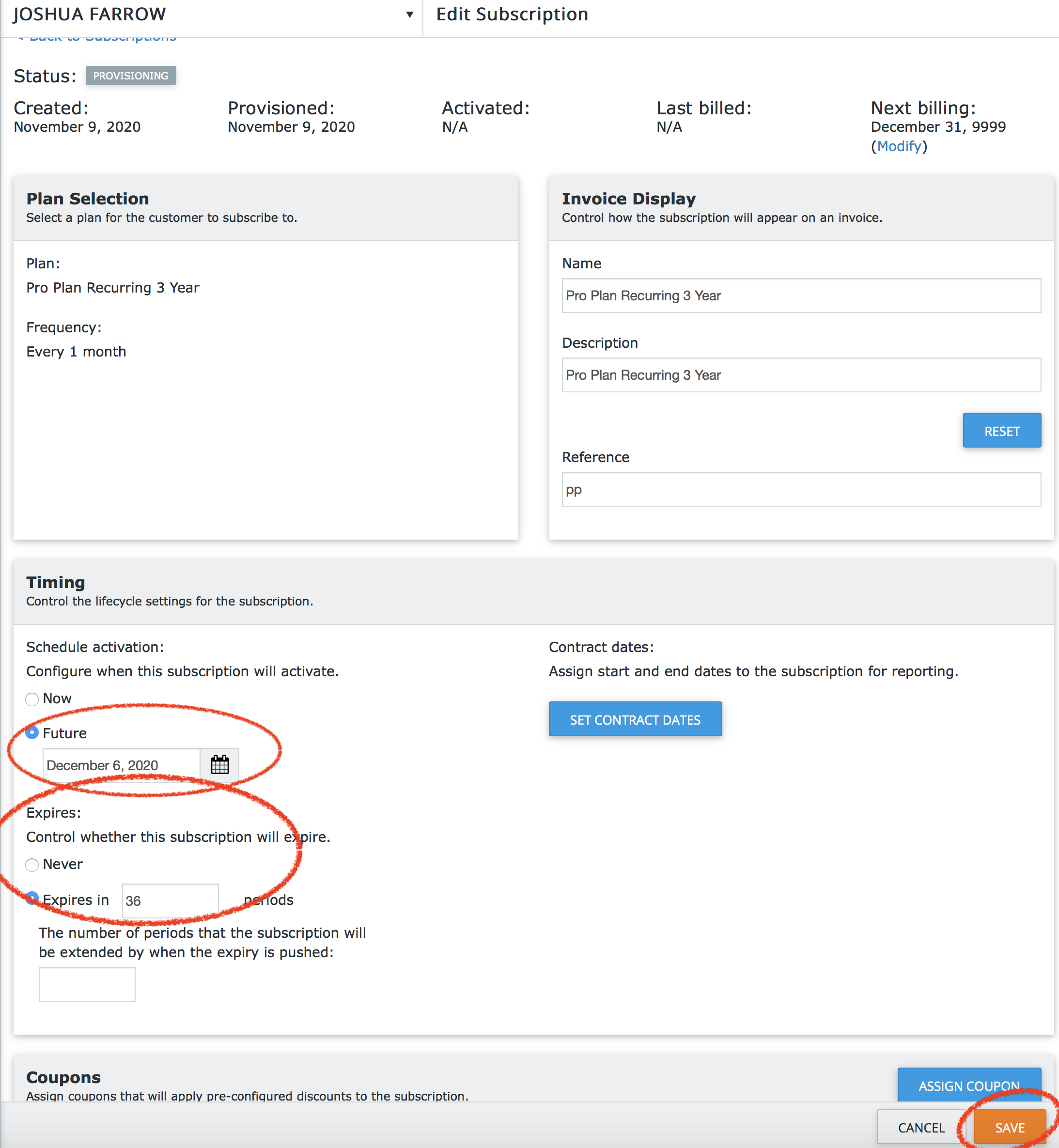
- FOR THE EXPIRES DATE – DO NOT ENTER ANYTHING FOR PC/ID PLANS – FOR PRO PLANS ENTER 24 FOR 2 YEAR PLANS AND 36 FOR 3 YEAR PLANS **** KEEPING IN MIND ANY BILLS THE CUSTOMERS HAS ALREADY PAID (SO IF THEY HAVE ALREADY PAID 2 MONTHS THROUGH AUTH.NET ON A 3 YEAR PLAN Y OU SHOULD SET THEM UP FOR 34 NOT 36)
- SAVE THE SUBSCRIPTION
- REPEAT THIS PROCESS IF THE CUSTOMER HAS MULTIPLE PLAN SUBSCRIPTIONS (LIKE A PRO PLAN AND A PC/ID PLAN)

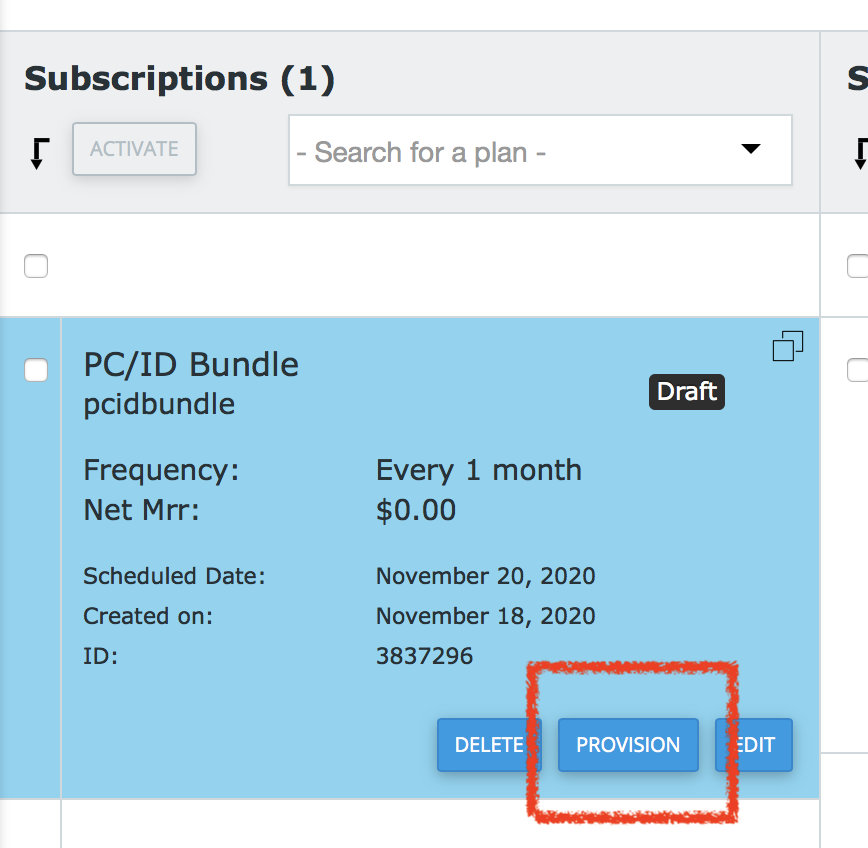
- WHEN YOU ADD THE PLAN IT WILL BE IN THE “DRAFT” STATUS – YOU HAVE TO CLICK THE PROVISION BUTTON – DO NOT LEAVE IN DRAFT
- ONCE YOU HAVE THE ACCOUNT IN FUSEBILL TAKE THE FOLLOWING STEPS IN AGEMNI:
- NOTE THE ACCOUNT THAT YOU ADDED TO FUSEBILL
- CANCEL THE AUTH.NET ARB SUBSCRIPTION(S)
- CHECK THE “IN FUSEBILL” CHECKBOX
- UN-CHECK THE “FB PAY METH ERR” CHECKBOX
- LOG INTO FUSEBILL
- CLICK CUSTOMERS ON THE LEFT SIDE MENU
- TYPE IN THE AGEMNI CUSTOMER # IN THE CUSTOMER ID SECTION AND PRESS SEARCH (YOU CAN ALSO SEARCH BY NAME)
- IF YOU CANNOT FIND THE CUSTOMER IN THE FD LOGIN TRY PPC AND VICE VERSA.
- IF YOU STILL CANNOT FIND THEM TRY AUTH.NET
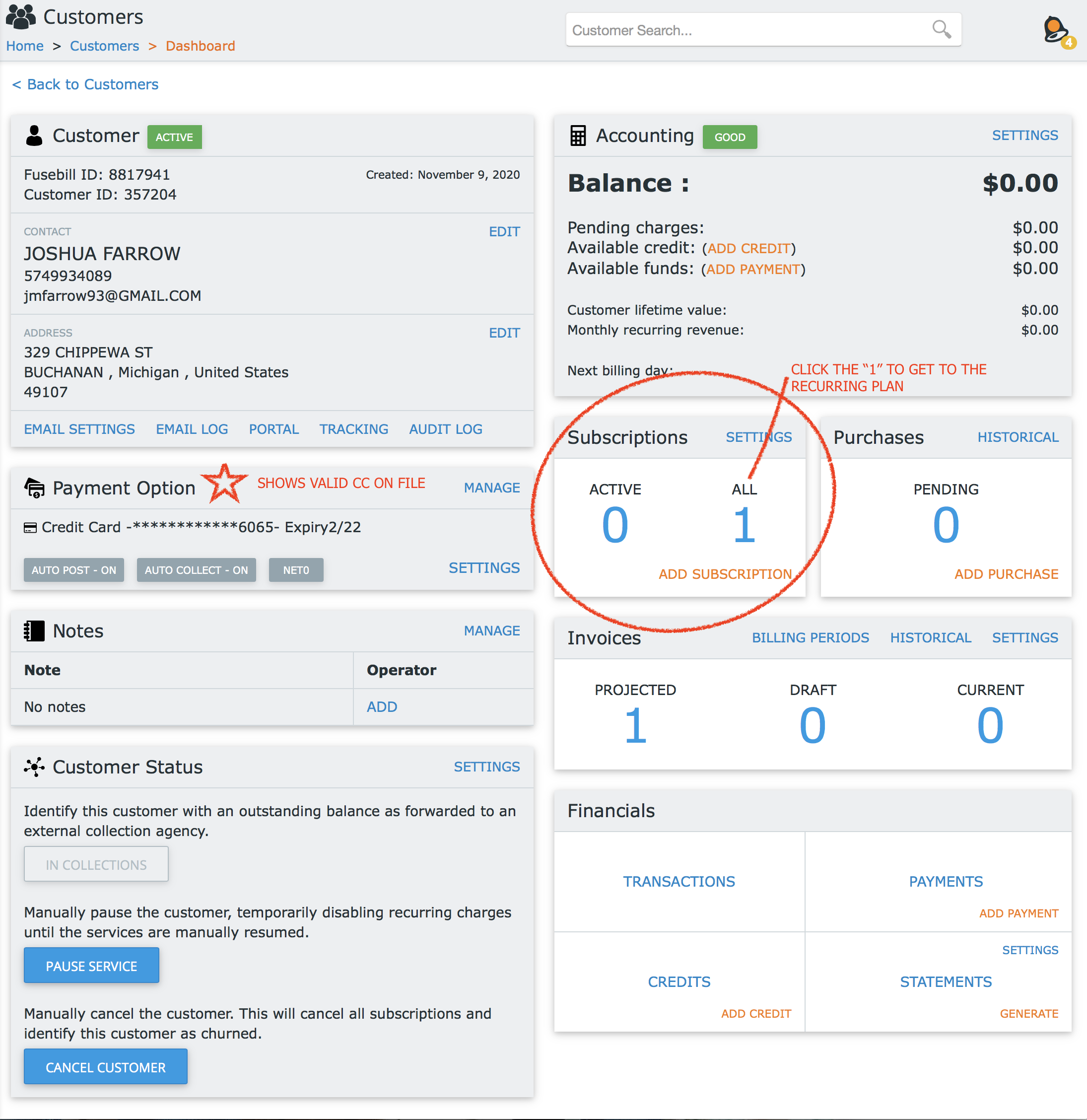
- CLICK THE BLUE FUSEBILL ID TO GET THE THE CUSTOMERS PROFILE – FROM HERE YOU CAN EDIT SUBSCRIPTIONS, APPLY REFUNDS AND MANAGE ALL ASPECTS OF THE CUSTOMERS ACCOUNT
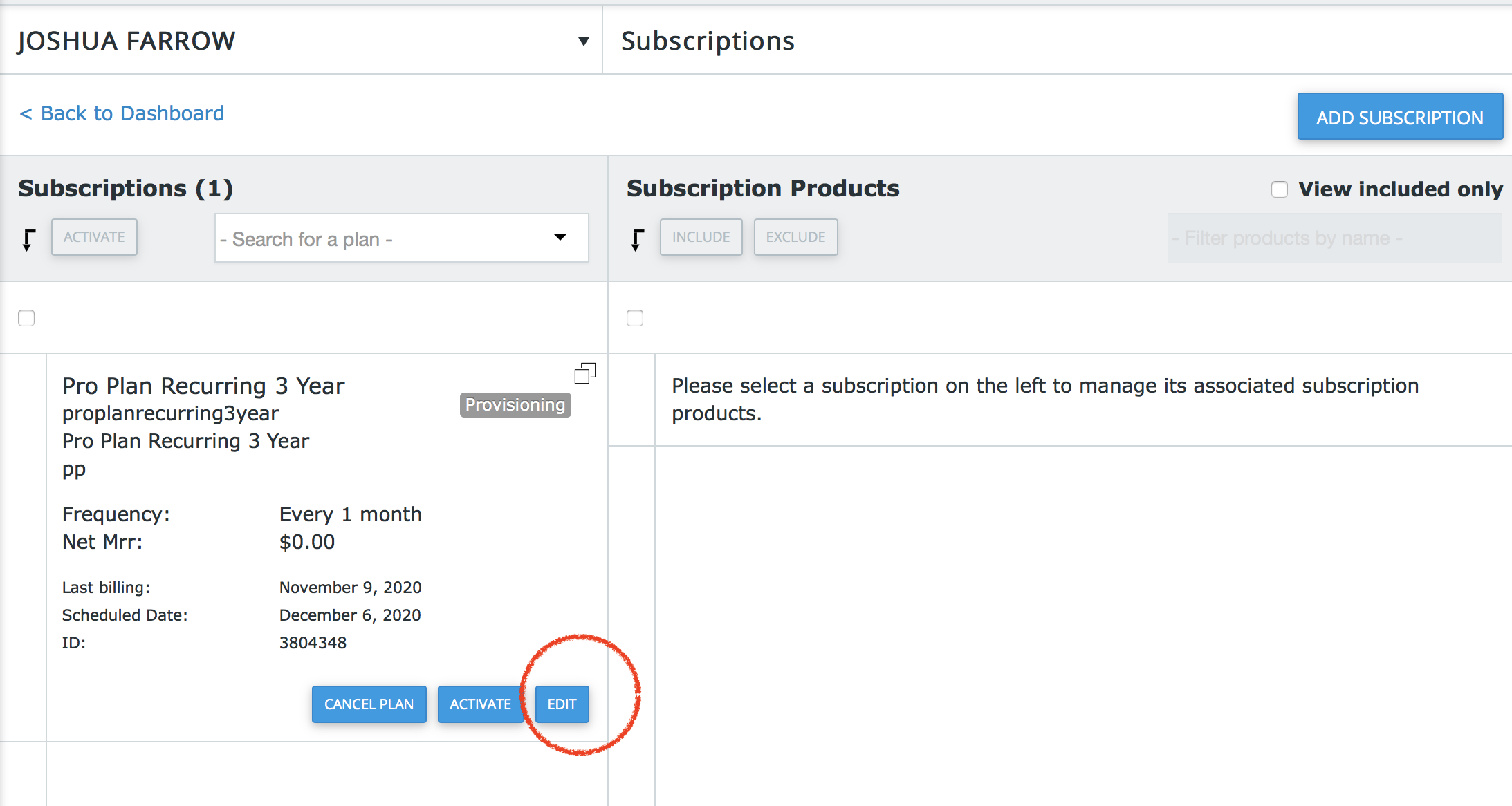
- FOLLOW THE SCREENSHOTS BELOW TO EDIT A SUBSCRIPTION.
- IF A SUBSCRIPTION IS FOR THE WRONG PLAN OR PRICE YOU WILL HAVE TO CANCEL IT ENTIRELY AND ADD THE CORRECT PLAN AND PRICE.
- FOLLOW THE SCREENSHOTS BELOW TO EDIT A SUBSCRIPTION.
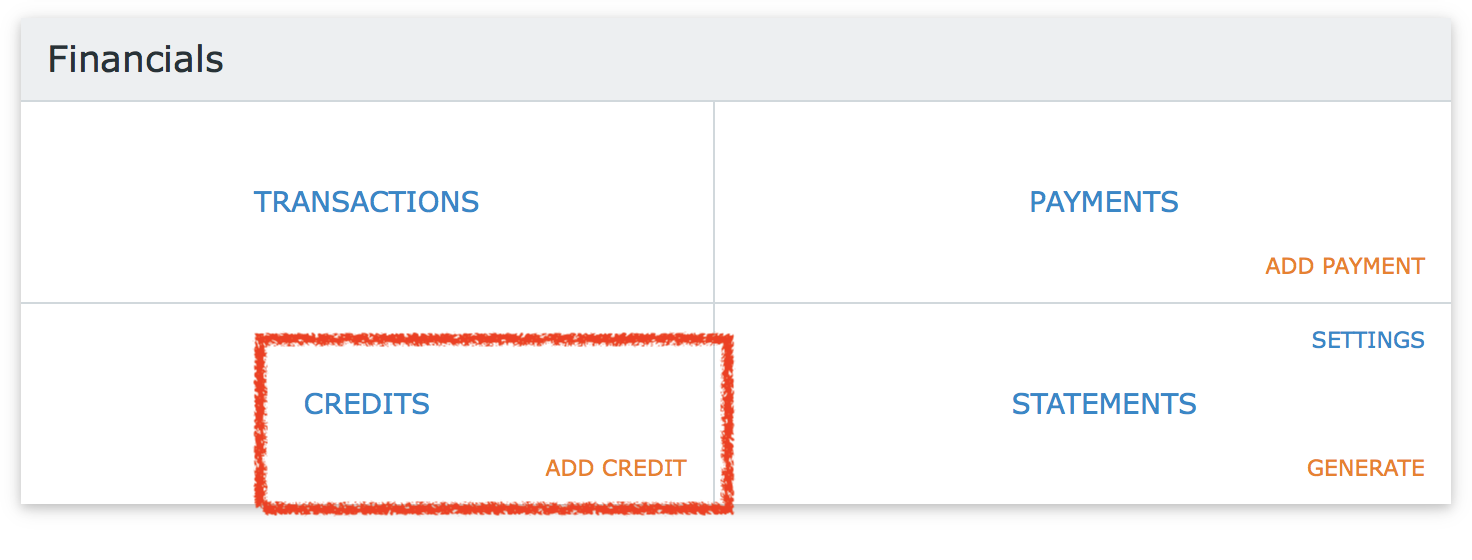
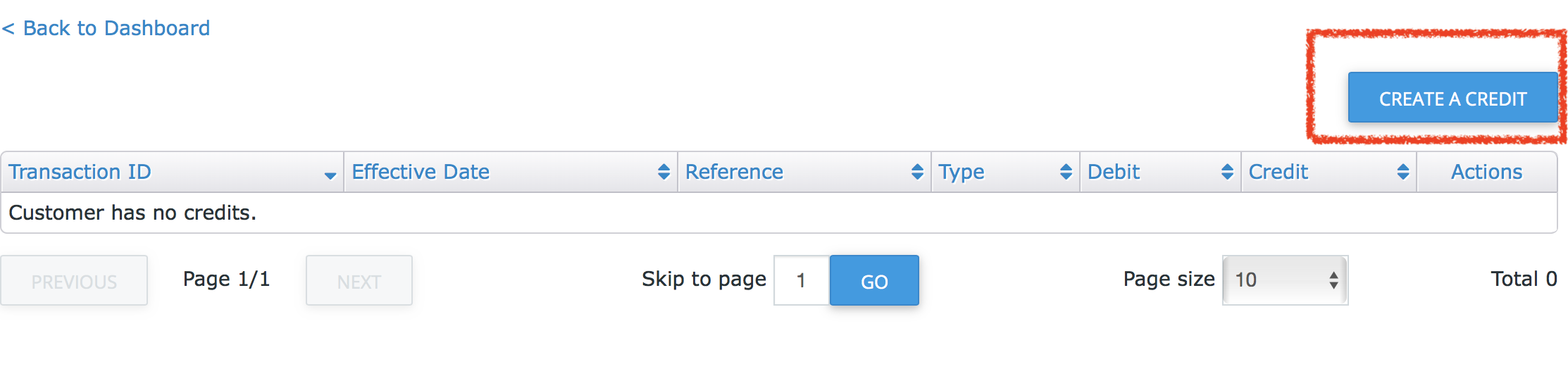
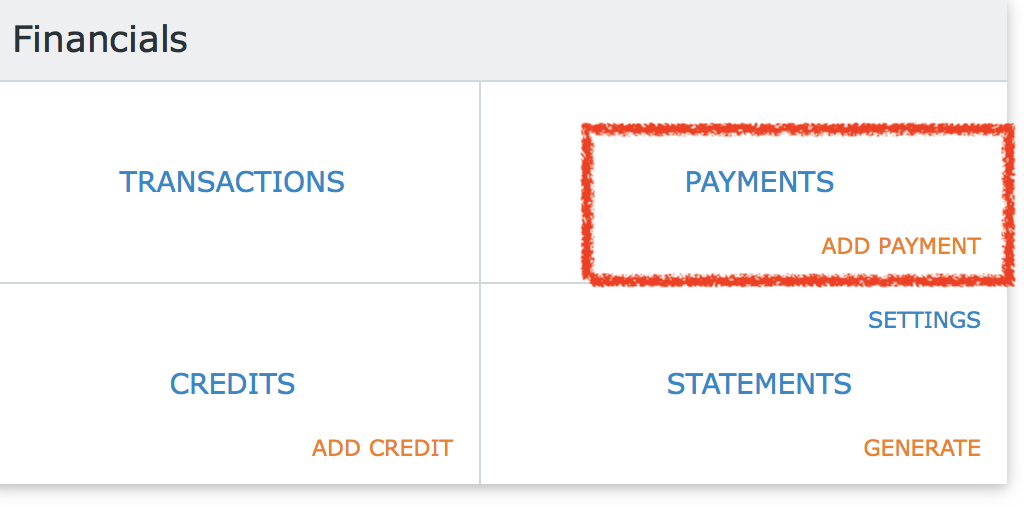
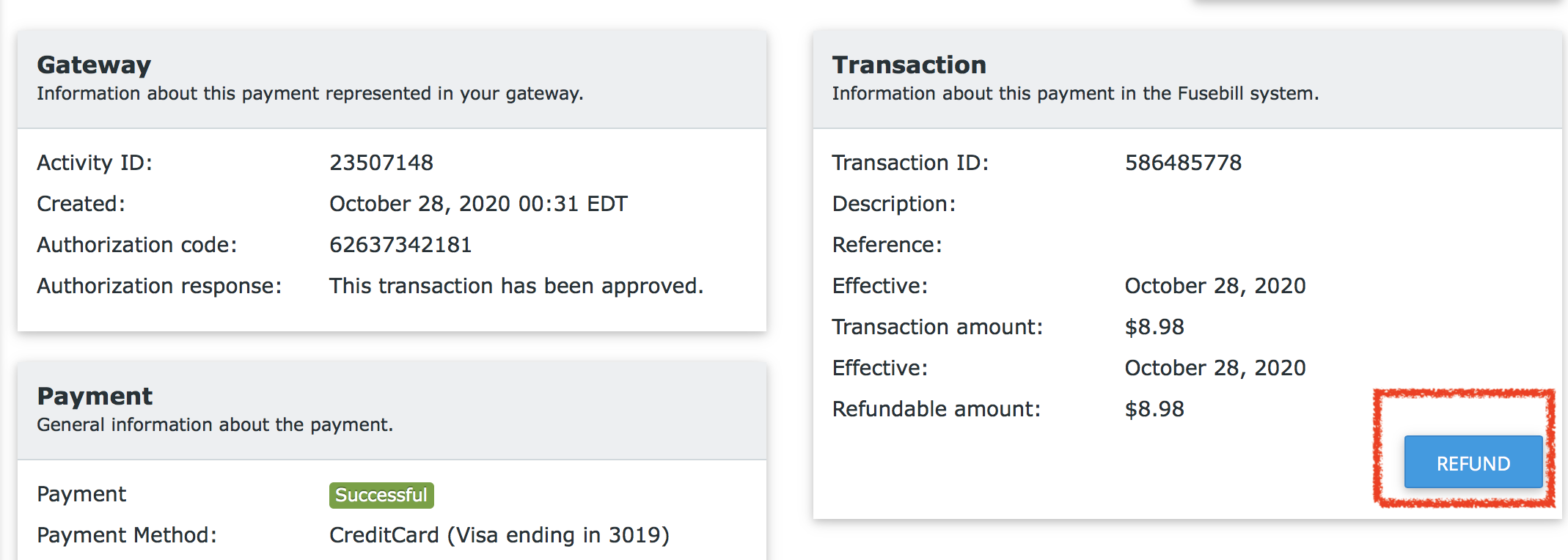
- IF A CUSTOMER DECLINED IN FUSEBILL BUT YOU MANUALLY TOOK A PAYMENT IN AUTH.NET FOR A Z DECLINED RECURRING YOU WILL NEED TO ADD THAT PAYMENT AS A CREDIT IN FUSEBILL TO AVOID THE CUSTOMER BEING RECHARGED (SEE BELOW FOR INSTRUCTIONS)

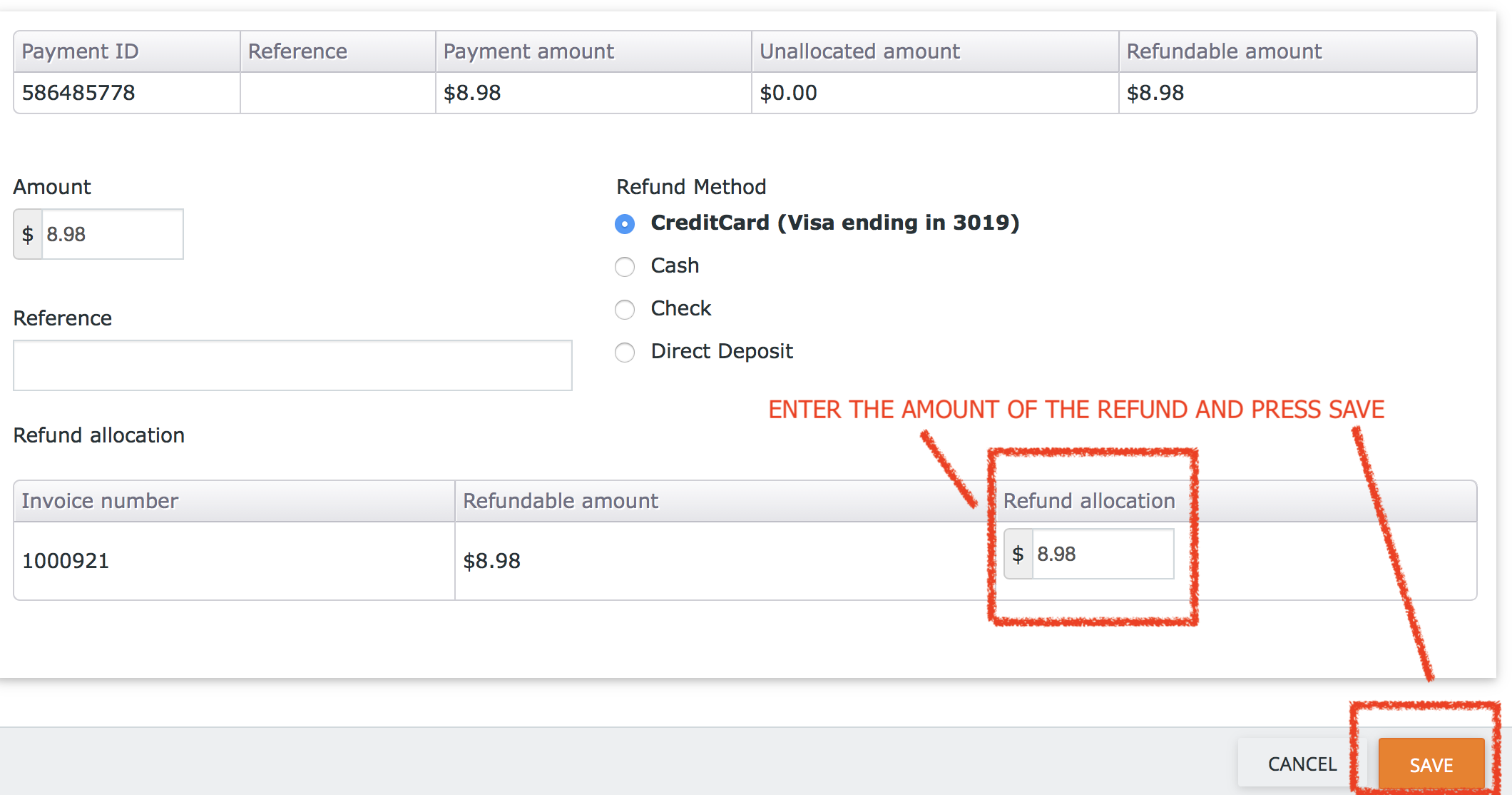
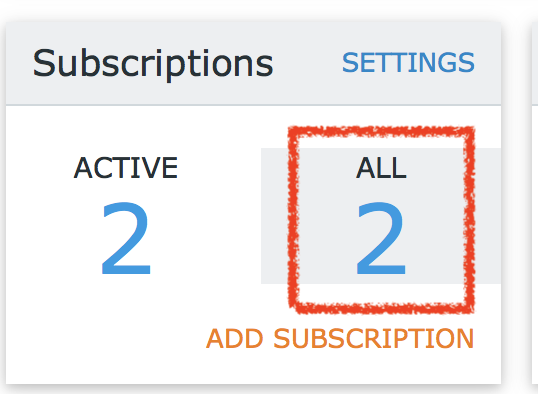
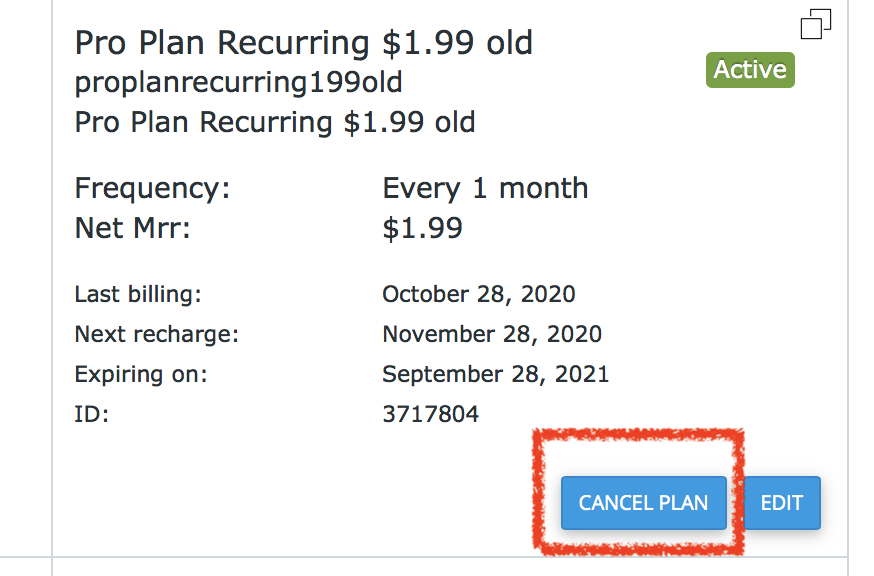
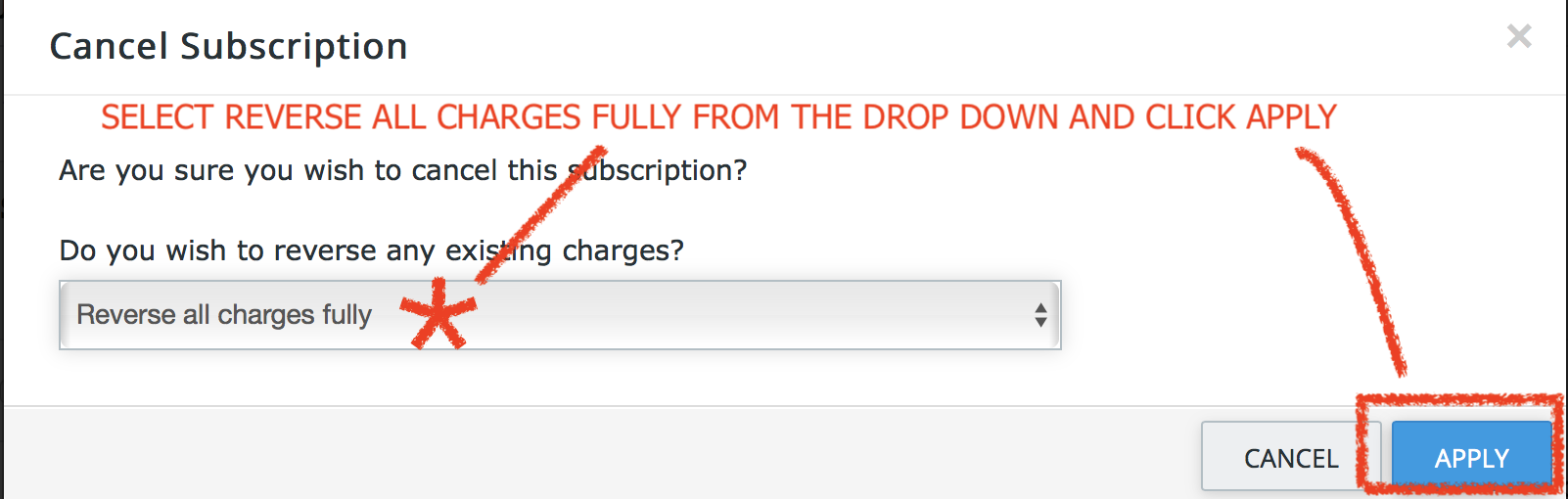
- YOU SHOULD ALSO TRY TO EDIT, CANCEL, OR START A NEW SUBSCRIPTION IN AGEMNI FIRST IN THE CREDIT CARD TAB – FOR FURTHER INSTRUCTION SEE BELOW
- ONCE IT FIND THE CUSTOMER CLICK THE SUBSCRIPTION ID #
- YOU CAN CLICK EDIT SUBSCRIPTION IN THE UPPER RIGHT HAND CORNER TO UPDATE – UPDATE THE INFO YOU NEED TO CHANGE AND THEN UPDATE AT THE BOTTOM OF THE PAGE
BUT TO FIND A SUB DIRECTLY IN AUTH.NET
- LOG INTO AUTH.NET
- FROM THE HOME SCREEN – IN THE MIDDLE RIGHT OF PAGE – CLICK Automated Recurring Billing™ (ARB)
- CLICK SEARCH ARB SUBSCRIPTIONS (MIDDLE OF PAGE)
- TYPE IN THE AGEMNI CUSTOMER # IN THE CUSTOMER ID SECTION AND PRESS SEARCH (YOU CAN ALSO SEARCH BY NAME)
- IF YOU CANNOT FIND THE CUSTOMER IN THE FD LOGIN TRY PPC AND VICE VERSA.
- IF YOU STILL CANNOT FIND THEM TRY FUSEBILL
- Agemni – Reports – Process
- Begin Date: 1/1/2020 End Date: Yesterday
- Status: Completed
- Inv Type: New Activation
- Provider” Protection Plan
- Recurring Set: NO
- Pro Waive Recurring: NO
- Agemni – Reports – Process
- Begin Date: 1/1/2020 End Date: Yesterday
- Status: Complete
- Inv Type: New Activation
- Provider: PC + ID
- Recurring Set: NO
ONCE THIS IS COMPLETE YOU WILL ALSO RUN THE SAME REPORT ONLY ON STEP #3 YOU WILL SEARCH FOR PENDING STATUS. ONCE YOU SET THIS UP ON ARB YOU WILL ALSO MAKE SURE THE ORDER IS STATUSED AS COMPLETED AND ALSO CHECK THE PROCESSED CHECKBOX.
- LOOK AT THE CUSTOMER EMAIL ADDRESS (CLICK THE “EYE” BUTTON TO VIEW)
- IF IT IS NOT A VALID EMAIL FORMAT (FOR INSTANCE IF IT IS NONE OR N/A OR NONE@NONE.COM) YOU NEED TO DELETE THE EMAIL ADDRESS
- SAVE CUSTOMER

- OPEN THE CREDIT CARD BOX
- MAKE SURE THE CVV IS ADDED AND CHECK ALL BOXES ON THE RIGHT (THE CVV MAY BE IN THE NOTES, CROSSROADS, OR CVV BOX)
- UPDATE
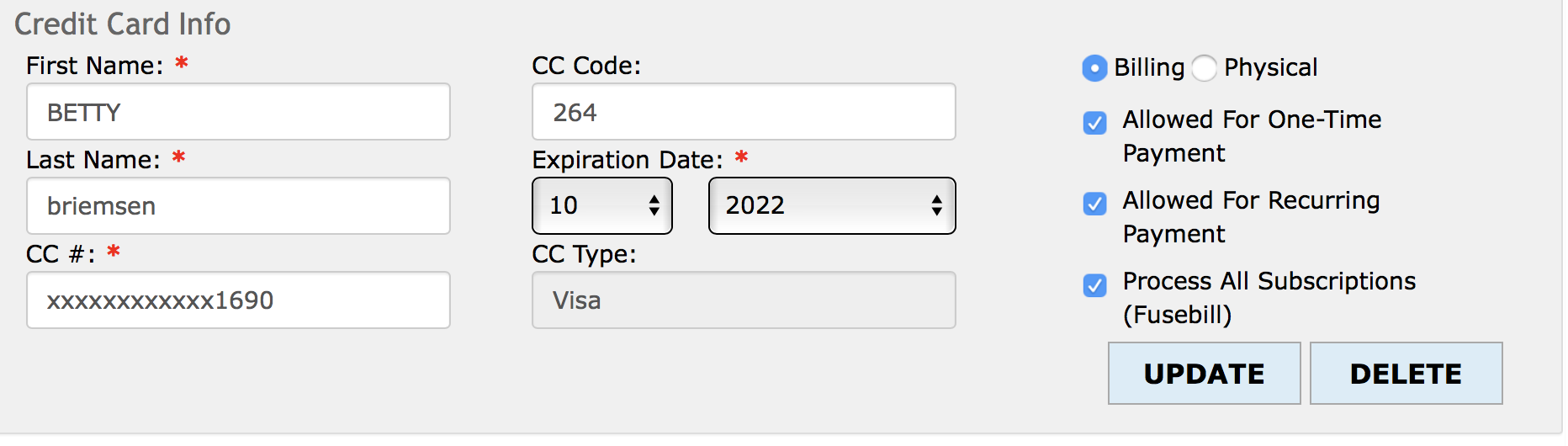
- FROM THE CREDIT CARD SCREEN UNDER CREDIT CARD INFO YOU WILL SEE ARB CREDIT CARD SUBSCRIPTION
- MOVE THE CREDIT CARD BOX NEXT TO THE WORK ORDER SO YOU CAN VERIFY AND CONFIRM THE INFO YOU ENTER IN THE ARB SECTION IS CORRECT
- USE THE PRO PLAN & PC/ID INFO BELOW TO ENTER THE CORRECT BILLING INFO INTO THE ARB SECTION
- ALWAYS VERIFY WHAT YOU HAVE ENTERED BEFORE YOU PRESS ADD.
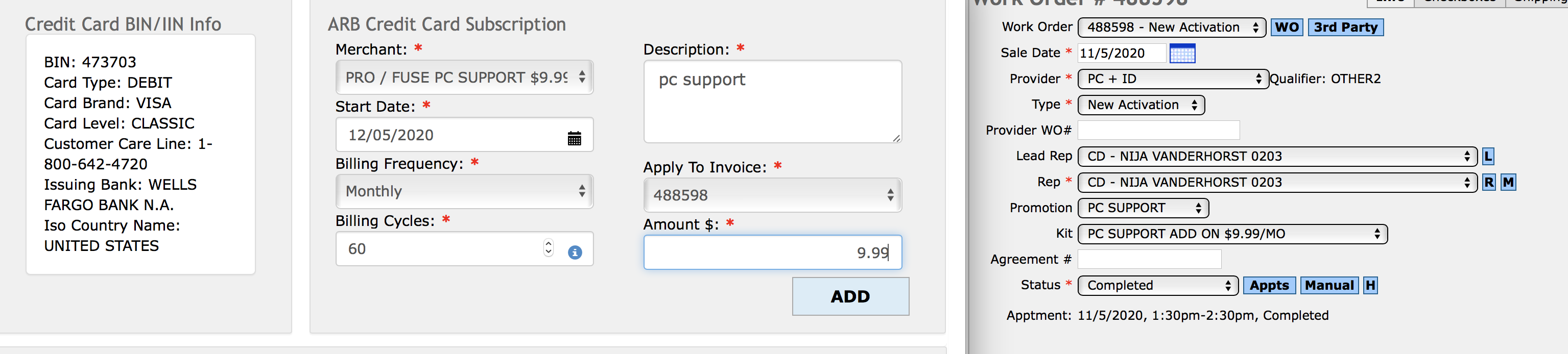
IMPORTANT NOTES:
- You should set the customer up through the same PPC or FD account that was used for their initial charge. You can verify this at the bottom of the Credit Card screen under Transaction History – just choose the corresponding FD or PPC merchant name and plan when you set up ARB.
- You will always try to set the default merchant to Fusebill. If you receive an error with Fusebill set the ABR up with the EMS Merchant.
- If there is NO CVV at all you will not be able to set the account up in Fusebill and should set up directly in Auth.net using the EMS Merchant.
- The Start Date will always be the SAME date of the month as the SALE DATE (if the sale date is 10/5 the ARB Start Date will be 11/5). The exception to this is if the sale date is the 29th, 30th, or 31st of the month. If the sale date is one of those 3 days the ARB Start Date will be the 28th of the following month. (if the sale date is 10/30 the ARB start date will be 11/28.)
Check the notes to confirm the customer should be billed either $1.99, .99, or if the fee was waived (if waived do not set up ARB).
| Promotion | Amount / Price | Billing Cycles | Description | 1st Merchant Option | 2nd Merchant Option If 1st Fails |
| PC Support 2 Years $1.99 | $1.99 | 24 | Pro 2 $1.99 | FUSE 2 YEAR PRO $1.99 | EMS / FD or PPC |
| PC Support 3 Years $1.99 | $1.99 | 36 | Pro 3 $1.99 | FUSE 3 YEAR PRO $1.99 | EMS / FD or PPC |
| PC Support 2 Years .99 | $0.99 | 24 | Pro 2 .99 | FUSE .99 CENT 2 YEAR PRO | EMS / FD or PPC |
| PC Support 3 Years .99 | $0.99 | 36 | Pro 3 .99 | FUSE .99 CENT 3 YEAR PRO | EMS / FD or PPC |
| Promotion | Amount / Price | Billing Cycles | Description | 1st Merchant Option | 2nd Merchant Option If 1st Fails |
| ID Theft | $9.99 | 60 | ID | FUSE ID THEFT 9.99 | EMS / FD or PPC |
| PC Support | $9.99 | 60 | PC | FUSE PC SUPPORT 9.99 | EMS / FD or PPC |
| PC+ID Bundle | $16.99 | 60 | PC ID | FUSE PC/ID BUNDLE 16.99 | EMS / FD or PPC |
- ONCE THE ARB IS SUCCESSFUL YOU WILL SEE THE INFO YOU USED TO SET UP IN THE ARB MANAGEMENT SECTION. THE ARB MANAGEMENT SECTION WILL NOT EXIST IN THE CREDIT CARD SCREEN UNTIL AN ARB IS SET UP.

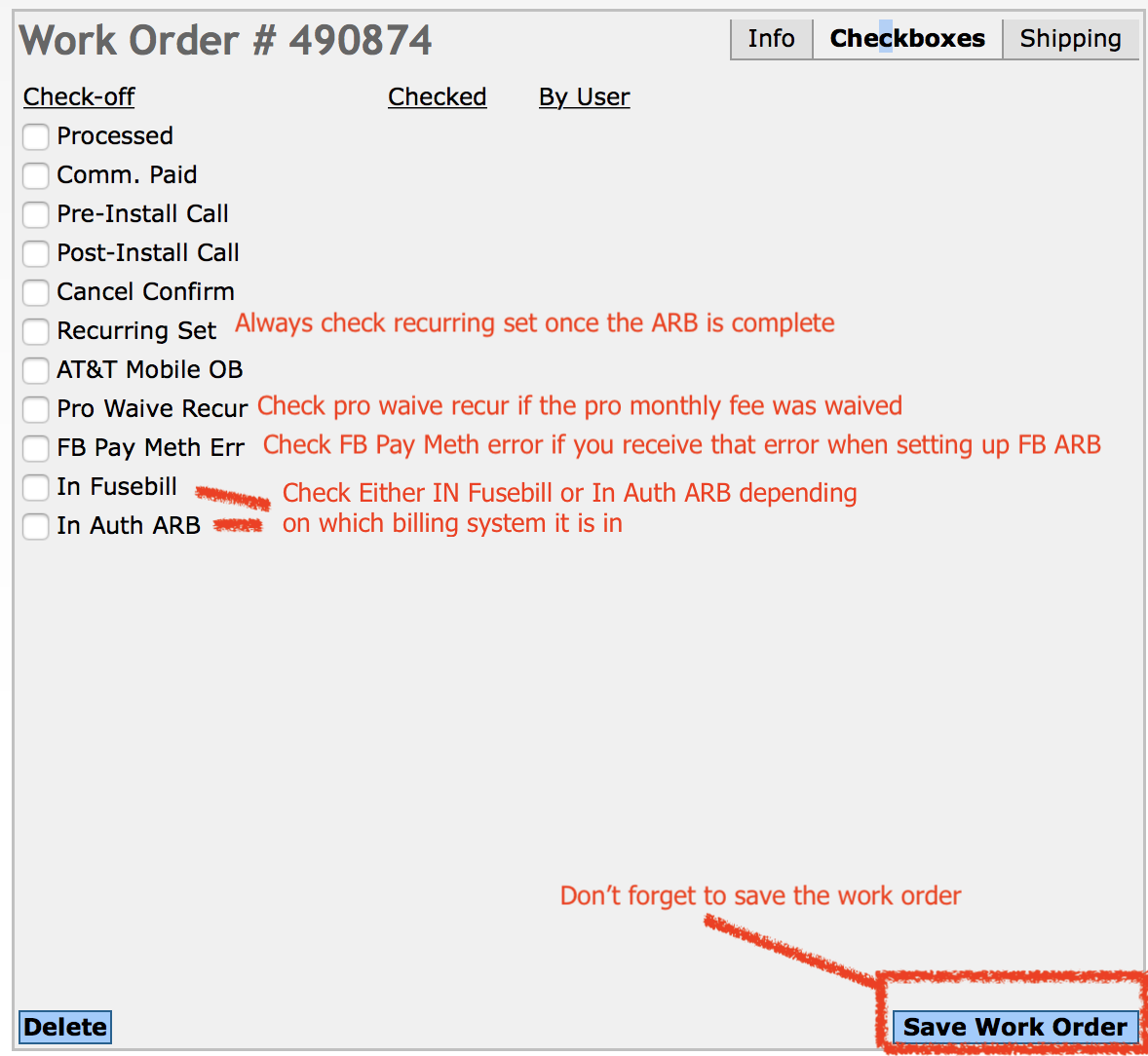
- THE FINAL STEP IS TO MAKE SURE YOU CHECK THE CORRECT CHECKBOXES IN THE CUSTOMER WORK ORDER
- IF THE PRO PLAN MONTHLY FEE WAS WAIVED YOU SHOULD CHECK THE “PRO WAIVE RECUR” BOX & “RECURRING SET” BOX
- IF RECURRING IS SET YOU SHOULD ALWAYS CHECK THE RECURRING SET BOX
- THEN CHECK EITHER THE IN FUSEBILL OR THE IN AUTH ARB BOX DEPENDING ON WHICH MERCHANT YOU SET THE ACCOUNT UP WITH
- IF YOU GET A PAYMENT METHOD ERROR WHEN YOU TRY TO ADD THE ARB TO FUSEBILL MAKE SURE YOU CHECK THE FB PAY METHOD ERR BOX PLUS ADD THE ORDER TO AUTH NET ARB.
SUBSCRIPTIONS IN DRAFT STATUS
Service Status equal to: Draft
Look at each account and as long as the SUB shouldn’t be cancelled click the PROVISION button on the SUB
MISSING PAYMENT METHODS
payment method warning: missing
Service status equals to: Active
Has a subscription to: Add all plans to the search field (just click each one)
Look up each account by customer # – see if there is a duplicate customer – if there is as long as one of them has a payment method on file CANCEL the customer that is missing a payment method.
EXPIRED PAYMENT METHODS 1
payment method warning: expired / expires this month
Service status equals to: Active
Has a subscription to: Add all plans to the search field (just click each one)
Contact customers and update their payment information in Fuse and Agemni.
***YOU WILL NEED TO FOLLOW THIS PROCESS FOR BOTH THE PPC AND FD DATABASE
This reconciliation will make sure the customers plan and billing amount is correct. First you will export a file to work off of. This file will allow you to quickly identify accounts that you need to review.
TO DOWNLOAD THE REPORT:
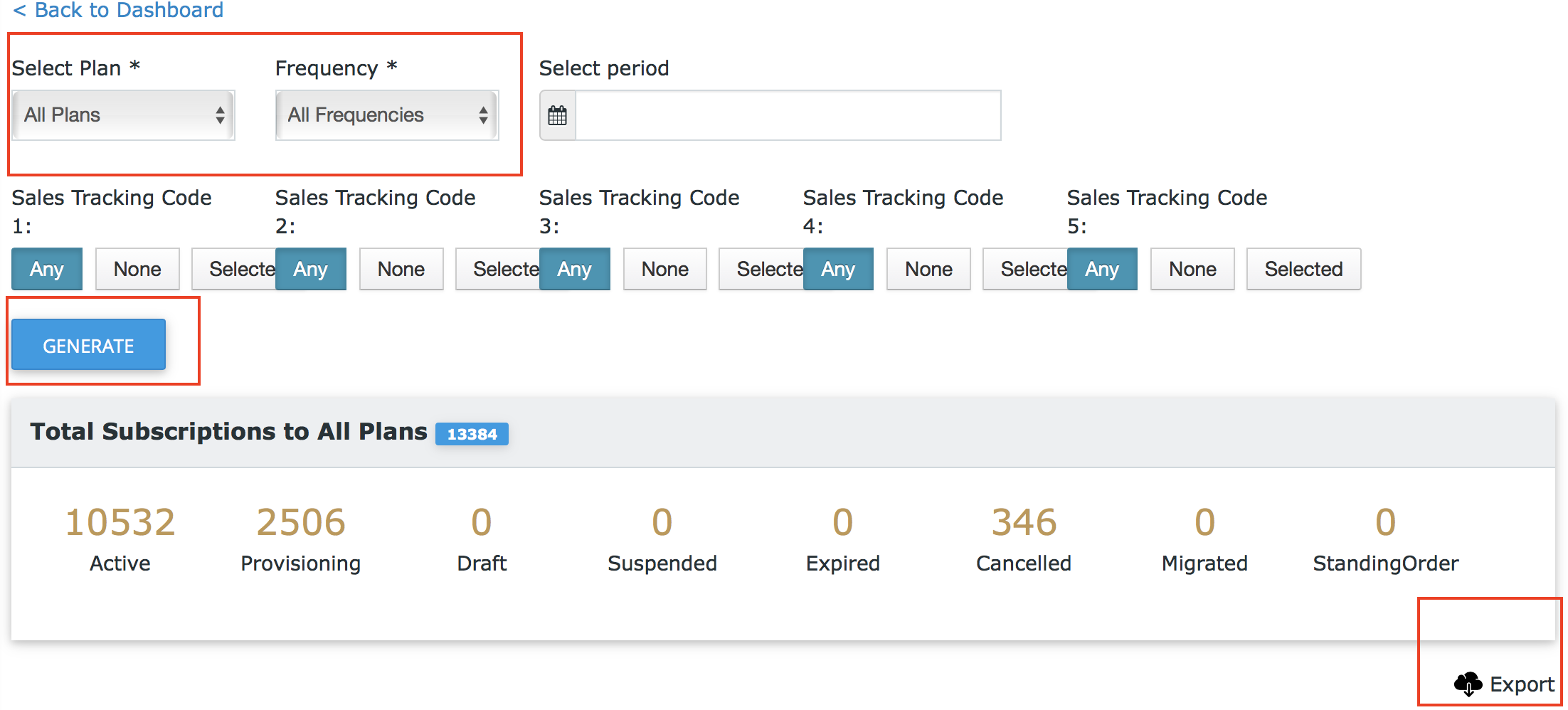
From the left side menu go to Reports then in the bottom left corner go to Entity – Subscription by Products next under Select Plan drop down choose All Plans and from Frequency drop down choose All Frequencies then press Generate.
Once the report Generates click Export on the right hand side of the page.
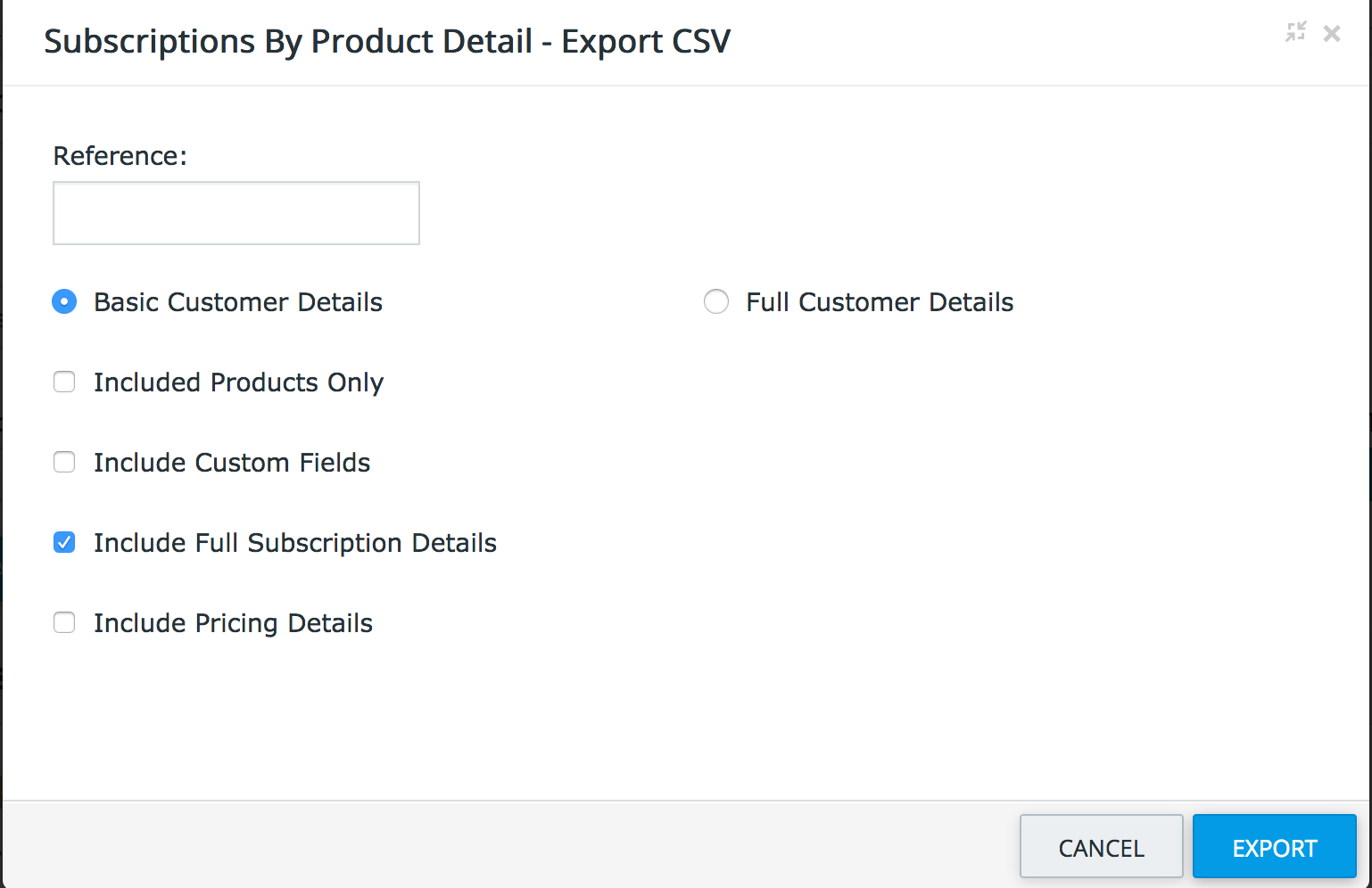
From the Export pop up make sure these options are selected then Export:
A pop up will open – just click Download – then open the file.
- Open the report you downloaded.
- Sort by “Subscription Status” and deleted all Cancelled orders.
- Sort by “Subscription Product Name” and add 2 columns to the right. Label 1 column “Actual Plan Price” and the other “Price Comparison”.
- For each group of plans in the “Actual Plan Price” column enter the price each plan is supposed to be (see chart below) *you can just copy and paste the correct price for each plan group.
- In the “Price Comparison” subtract “Actual Plan Price” and “Uplift Price”. Carry that formula all the way down the file.
- Now sort by “Price Comparison” – if the value is NOT a “0/zero” you will need to review that account. Be sure to look at the very top and very bottom of the list for issues.
- Double check each customer in Fusebill and Agemni to make sure the plans are set up for the correct amount. Most often the error is the processor selected the right plan name but entered the wrong price amount or vice versa. Add a NEW plan in Fusebill for the correct amount and make sure you change the status of the subscription from Draft to Provision. Cancel the incorrect plan.
| Subscription Product Name | Actual Plan Price |
| 99 Cents Pro Plan 2 year recurring | $0.99 |
| 99 Cents Pro Plan 3 year recurring | $0.99 |
| ID Theft | $9.99 |
| PC 6.99 old | $6.99 |
| PC or ID Old $9.99 | $9.99 |
| PC Support | $9.99 |
| PC/ID Bundle | $16.99 |
| pro plan .99 old | $0.99 |
| Pro Plan 2 Year Recurring Fee | $1.99 |
| Pro Plan 3 year recurring | $1.99 |
| Pro Plan Recurring $1.99 old | $1.99 |
- LOG INTO AUTH.NET
- FROM THE HOME SCREEN LEFT SIDE MENU GO TO TRANSACTION SEARCH THEN SEARCH FOR A TRANSACTION
- dates AND SEARCH
- FROM THE BLUE MENU CLICK “DOWNLOAD TO FILE”
- A POP UP WILL OPEN – SELECT “EXPANDED FIELDS COMMA SEPARATED” FROM THE DROP DOWN THEN SUBMIT
- A NEW POP UP WILL OPEN – SAVE THE FILE
- THE FILE WILL DOWNLOAD IN A TXT FORMAT – RIGHT CLICK THE DOWNLOADED FILE THEN OPEN WITH AND CHOOSE EXCEL
- ALL OF THE DATA WILL BE IN COLUMN A – EASILY SEPARATE THE DATA BY HIGHLIGHTING COLUMN A THEN FROM THE EXCEL HEADER GO TO DATA – TEXT TO COLUMNS
- A POP UP WINDOW WILL APPEAR – MAKE SURE THE “DELIMITED” BOX IS SELECTED THEN CLICK NEXT
- MAKE SURE TAB AND COMMA ARE SELECTED THEN CLICK FINISH
- SORT THE FILE BY “Recurring Billing Transaction” – DELETE ALL “N” AND KEEP ALL “Y”
- NOW THAT Ns HAVE BEEN REMOVED SORT BY “Invoice Description” AND ADD 2 COLUMNS TO THE RIGHT. LABEL 1 COLUMN “ACTUAL PLAN PRICE” AND THE OTHER “PRICE COMPARISON”.
- FOR EACH GROUP OF PLANS IN THE “ACTUAL PLAN PRICE” COLUMN ENTER THE PRICE EACH PLAN IS SUPPOSED TO BE (SEE CHART BELOW) *YOU CAN JUST COPY AND PASTE THE CORRECT PRICE FOR EACH PLAN GROUP.
- IN THE “PRICE COMPARISON” SUBTRACT “ACTUAL PLAN PRICE” AND “TOTAL AMOUNT”. CARRY THAT FORMULA ALL THE WAY DOWN THE FILE.
- NOW SORT BY “PRICE COMPARISON” – IF THE VALUE IS NOT A “0/ZERO” YOU WILL NEED TO REVIEW THAT ACCOUNT. BE SURE TO LOOK AT THE VERY TOP AND VERY BOTTOM OF THE LIST FOR ISSUES.
- DOUBLE CHECK EACH CUSTOMER IN AGEMNI TO MAKE SURE THE PLANS ARE SET UP FOR THE CORRECT AMOUNT. MOST OFTEN THE ERROR IS THE PROCESSOR ENTERED THE WRONG PRICE AMOUNT OR PLAN DESCRIPTION.
- GO TO THE CUSTOMERS ACCOUNT IN AGEMNI
- CLICK THE CREDIT CARD BUTTON
- EDIT THE CORRECT EMS FD or PPC ARB SUBSCRIPTION AND CORRECT THE ERROR (AMOUNT OR DESCRIPTION)
| Promotion | Amount / Price | Billing Cycles | Description | ||
| PC Support 2 Years $1.99 | $1.99 | 24 | Pro 2 $1.99 | ||
| PC Support 3 Years $1.99 | $1.99 | 36 | Pro 3 $1.99 | ||
| PC Support 2 Years .99 | $0.99 | 24 | Pro 2 .99 | ||
| PC Support 3 Years .99 | $0.99 | 36 | Pro 3 .99 |
| ID Theft | $9.99 | 60 | ID | ||
| PC Support | $9.99 | 60 | PC | ||
| PC+ID Bundle | $16.99 | 60 | PC ID |